Does an AI Meeting Assistant Work on Zoom, Teams, and Google Meet?
Every platform now has built-in AI. Here's what it actually does, why it's not real-time coaching, and how an overlay assistant is different.
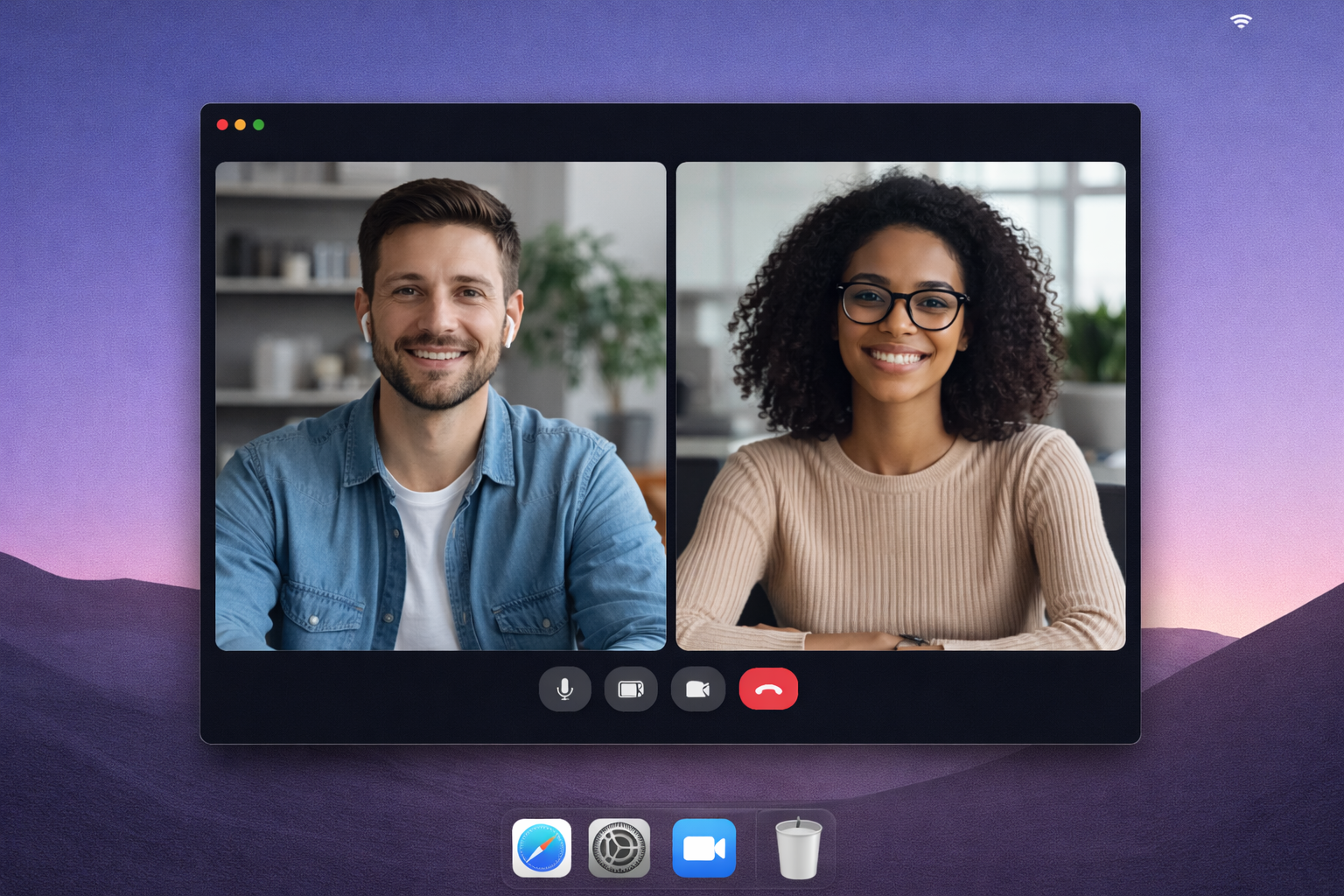
Does an AI Meeting Assistant Work on Zoom, Teams, and Google Meet?
In the last six weeks, every major video meeting platform shipped a significant update to its built-in AI. Google Gemini expanded its note-taking feature to capture meetings hosted on Zoom and Teams — not just Google Meet — and announced that more than 110 million attendees used it in a single month. Microsoft added an in-meeting toggle on July 13 that lets organizers enable or disable Copilot, Facilitator, and meeting recap AI in real time. Zoom launched ZoomMate on July 17, a layer above its existing AI Companion that connects calendar context, chat history, and linked documents into a unified meeting assistant.
If you're evaluating AI tools for a job interview, a sales call, or a high-stakes negotiation, all of that activity raises a reasonable question: the platforms already have AI built in. Does that mean the problem is solved?
It isn't. And understanding why requires separating three things that routinely get collapsed into a single conversation: what platform-native AI actually does, how third-party meeting bots work and why they're increasingly getting blocked, and what a real-time personal overlay is and how it differs from both.
What Platform-Native AI Actually Does
Zoom AI Companion, Microsoft Copilot in Teams, and Google Gemini do roughly the same thing: they record and transcribe the meeting, then generate a post-meeting summary with key points and action items.
That summary is shared. It goes to everyone in the meeting or into a linked document everyone can access. The AI functions as a service for the group, not a private assistant for any individual participant. If you're in a job interview and Zoom's AI Companion is active, the interviewer receives the same recap you do. The tool is symmetric by design.
None of the platform-native tools coach you during the call. They don't surface the answer to a question you weren't expecting. They don't flag a buying signal the prospect just dropped or suggest the follow-up that fits the moment. They transcribe what happened and organize it after the fact — a more efficient version of writing your own notes, but still a retrospective artifact.
That's a real improvement for documentation and follow-up. It's not what someone means when they ask whether AI can help them in a live interview.
What Third-Party Meeting Bots Do — and Why They're Getting Blocked
The second category of meeting AI is the notetaker bot: a software participant that joins your call alongside the human participants. Otter, Fireflies, Read.ai, Fathom, and most third-party meeting tools use this model. You connect the tool to your calendar, and it auto-joins each call as an additional participant with a name like "Otter Notetaker" or "Fireflies AI."
This architecture ran into significant policy changes in 2026. Microsoft Teams rolled out mandatory bot detection and quarantine to all worldwide datacenters by July 31, routing detected external bots to a lobby labeled "Suspected threats / Unverified" that meeting organizers must manually clear before the call can proceed. In August, Microsoft added a stricter admin option to block external bots outright with no lobby admission possible. Google Meet moved earlier, beginning in March 2026, routing third-party bots to the waiting room with a visible "potential risks" label. Several universities and enterprises followed by blocking third-party bots from their tenants entirely.
The same limitation applies here regardless of blocking: bots work for the group's record, not for you privately. A Fireflies bot joining your sales call records the conversation for a shared transcript after the call ends. It doesn't tell you what to say in the next ten seconds. And in more contexts than before, it doesn't get into the meeting at all.
The Third Category: A Personal Overlay
Neither of those categories describes what someone searching "does an AI meeting assistant work on Zoom" is usually looking for.
What most people want is a tool that runs on their own machine, monitors the conversation in real time, and surfaces suggestions privately — only on their screen, only visible to them. Not a bot joining the call as a participant. Not a transcript that everyone can see afterward. A personal coaching layer that operates entirely on the user's side of the meeting.
This is how an overlay-based AI meeting assistant works. The software runs locally on your computer and captures audio directly — your microphone and your system audio — without interacting with Zoom, Teams, or Google Meet at all. The meeting platform is simply the window the conversation is happening through. The AI processes the audio on your machine and renders suggestions in a screen overlay that doesn't appear in your shared screen and doesn't show up in any participant view.
The practical consequence: it works on every platform. Zoom, Microsoft Teams, Google Meet, Webex, Slack huddles, phone calls conducted through a headset, in-person conversations if you have a microphone connected. It doesn't matter which platform hosts the meeting because the tool isn't connected to the platform. It's connected to your audio hardware.
The Specific Compatibility Question
The question people are actually asking is: "If I run an AI overlay during my Zoom interview, can my interviewer see it?"
No. A screen overlay — a window rendered on your local display — is visible in a screen share only if you explicitly share that window or share your entire screen. In a standard interview where you're on camera, you share your webcam feed, not your display. The overlay isn't in that frame.
The same holds for Teams and Google Meet. The call transmits your camera feed and any window you specifically choose to share. A local overlay isn't transmitted because you haven't shared it.
This is also why overlay-based tools don't trigger the quarantine and blocking policies that have started to affect bot-based tools. There's no bot to detect. The meeting platform has no awareness that you're running any additional software. From Zoom's perspective, from Teams' perspective, from Meet's perspective, you're a person with a webcam and a microphone.
The Microsoft Teams quarantine policy and the Google Meet "potential risks" flag target software that tries to join the call as a participant. An overlay doesn't try to join anything.
What "Real-Time" Actually Means
The distinction between post-call AI and real-time AI comes down to when the output arrives relative to the moment you need it.
Post-call tools — platform-native AI, meeting bots — produce a formatted artifact after the call ends: a summary, a transcript, timestamped action items. That artifact is useful for follow-up, internal documentation, and the review you do between rounds of a long interview process.
Real-time tools produce output during the call, in time to actually use. When the other person says something — asks an unexpected question, raises a pricing objection, surfaces an interest they haven't mentioned before — a suggestion appears on your screen in the moment. You can use it verbatim, adapt it, or ignore it and go off script. The call keeps moving either way.
The difference is sharpest exactly where you'd most want help. Not after the call, when you're writing a thank-you note or a deal summary at your own pace, but during the high-pressure exchange where you're relying on recall and composure.
A behavioral question you didn't prepare for. A pricing objection you haven't heard before in this exact form. A detail about the company's recent product launch that you researched but can't locate in working memory while maintaining eye contact. In each of those moments, a post-call summary won't help you. It arrives when the outcome has already been decided.
What to Look For in an Overlay Tool
If you're evaluating real-time overlay tools for interviews, sales calls, or negotiations, the practical evaluation criteria are short.
Latency. The only suggestion that helps you in a live call is one that arrives before the moment has passed. Tools that batch-process audio in 10- or 30-second windows often surface suggestions too late to be useful in the way you'd hope. Look for streaming output, where the suggestion begins appearing as the AI processes the audio rather than waiting for a full segment to complete.
Invisibility in screen share. Test this before relying on it. Open a test call, share your interview-relevant window (your camera, your browser, your slide deck), and confirm the overlay doesn't appear. Any serious tool in this category is built for this scenario, but verify it in your specific setup before a live call.
Context depth. The output quality of any real-time AI is proportional to the context it starts with. A tool working only from the live transcript will produce generic suggestions. A tool that accepts your resume, the job description, your company research, your prep notes — and draws on that material when generating suggestions — will produce answers specific to your actual situation. The research you did before the call is what makes the AI useful during it.
Platform independence. If you take calls across Zoom, Teams, and Google Meet depending on who's scheduling, look for a tool that uses system audio capture rather than per-platform bot integrations. System audio capture means one tool works everywhere, with no separate setup per platform.
Meeting Copilot's interview assistant and sales call assistant work on this model: you load your context before the call — resume, job description, prep notes, company research — the overlay runs locally, captures audio from whatever platform the call is on, and suggestions stream to your screen in real time. Nothing is shared with anyone else in the meeting. The platform has no visibility into the tool running on your side.
The Short Answer
Does an AI meeting assistant work on Zoom, Teams, and Google Meet? Yes, but the answer depends entirely on which kind.
Platform-native AI (Zoom AI Companion, Teams Copilot, Google Gemini) — yes, it works, and it's getting more capable. It produces post-call shared notes for everyone in the meeting. It's not private real-time coaching.
Bot-based notetakers — increasingly unreliable on Teams and Meet due to quarantine policies, and post-call regardless of whether they successfully join.
Overlay-based real-time assistants — yes, they work on every platform, because they operate entirely on your device and don't interact with the meeting platform at all. No bot to quarantine, no participant slot to detect, nothing shared on the other side of the call.
The question people are searching is usually the third one. The platforms' new AI features answer a different question — one about shared documentation and group productivity. The real-time personal overlay answers the one that actually matters in a high-stakes call: what do you say next.
Sources: Google Gemini Expands Note-Taking to Zoom and Teams · Zoom AI Companion vs Gemini vs Copilot: 2026 Showdown · Microsoft Teams Adds In-Meeting Toggle for Copilot, July 13, 2026 · Copilot in Teams Apr–Aug 2026 · AI Notetaker Blocked: Teams and Google Meet Policies